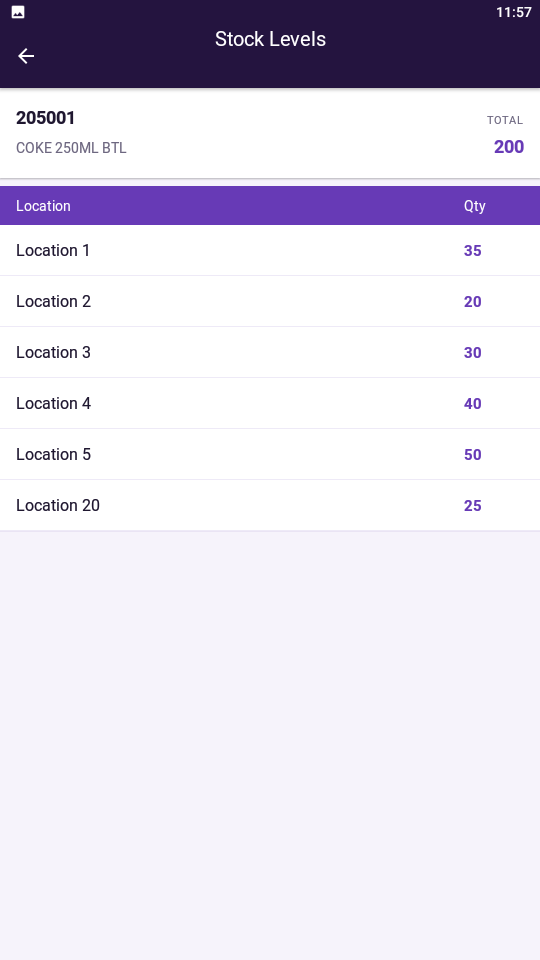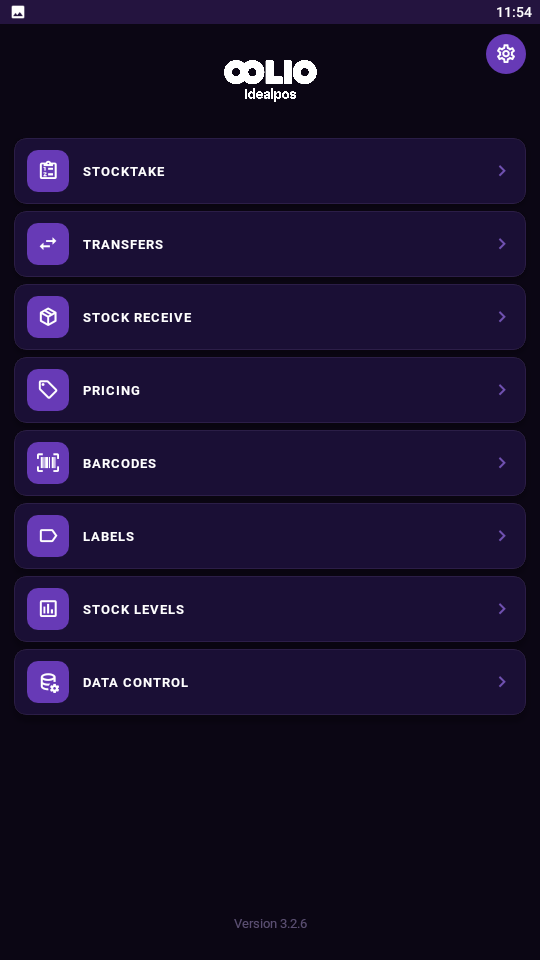
The Stock Levels menu enables Stock Item Stock Levels to be displayed in Pocket Stock.
Note!
This feature requires Idealpos v10 Build 1 or newer!
If using an older build of Idealpos, pressing the Stock Levels button on the Pocket Stock main menu will trigger the following prompt:
Upgrade Required
The feature requires an upgraded version of Idealpos. Please contact your reseller.
After upgrading to Idealpos v10 Build 1 or newer, select the Data Control option from the Pocket Stock main menu > Download.
This will download the latest data from Idealpos and enable access to the Stock Levels functionality.
Note that the Stock Levels displayed are only current for the point in time which the data was downloaded to Pocket Stock.
Also note that the Stock Levels function will only display Stock Levels for direct Stock Items.
Indirect Stock Items will appear with a Stock Level of 0 (when the Indirect Items have been enabled in the POSServer Stock Control Configuration).
To retrieve the latest Stock Levels, a Download will need to be performed via the Data Control function.
To use Stock Levels, select the Stock Levels option from the Pocket Stock menu.
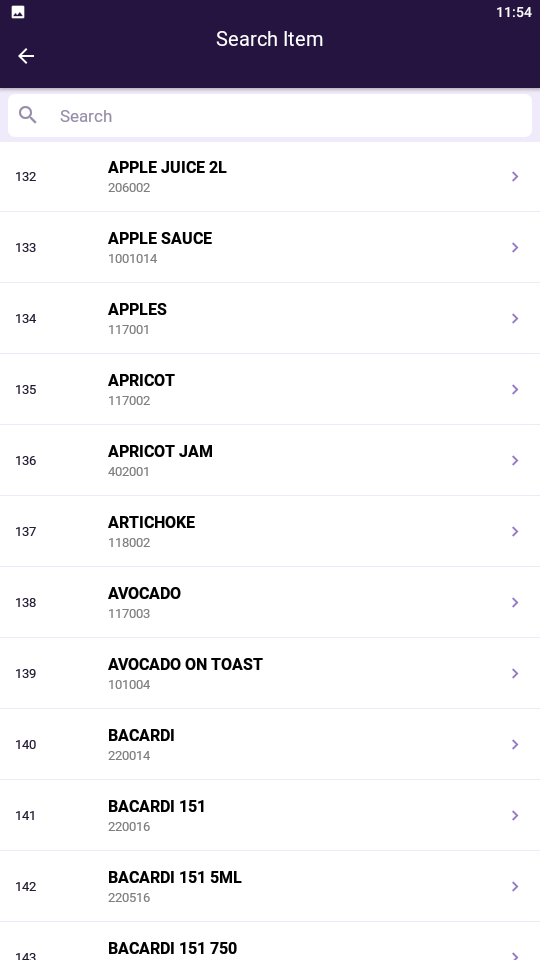
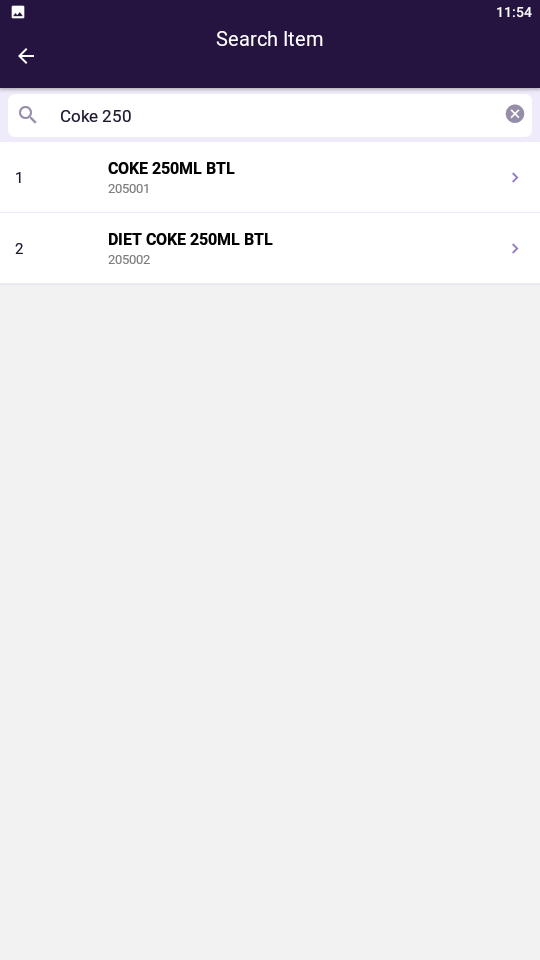
Search/scroll the list of Stock Items and select the Stock Item which you need to view the Stock Level.
After the item has been selected, the Stock Item's Stock Level in each Location will be displayed.
The Total Stock Level appears at the top of the screen and each Location's Stock Level is displayed below.
The below example shows a Stock Item that only has Stock Level in a single Location.
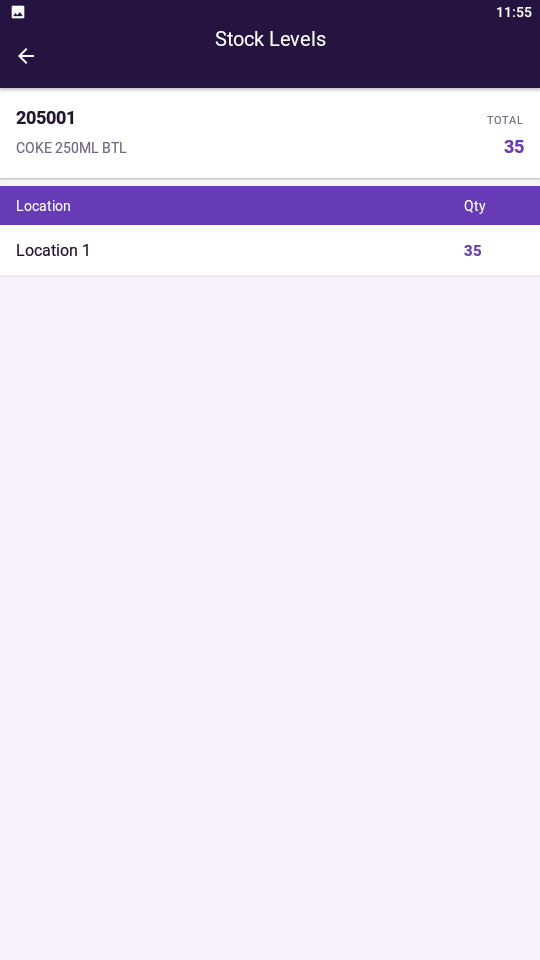
If the Stock Item has a Stock Level in multiple Locations, the Stock Level will appear next to each Location.
The below example shows a Stock Item that has a Stock Level in multiple Locations.